Configure Dashlets
The Configure Dashlets allows administrators to manage the availability and visibility of dashlets on the dashboard for different user roles. Dashlets are individual components that display specific data or functionality, such as documents, users, or key metrics, making the dashboard customizable and role-specific.
Steps to Configure the Dashlets.
- Click the Configure Dashboard button next to the Edit Dashboard button. The dropdown menu displays the Configure Dashlets, and Configure KPIs options.
- Select the Configure Dashlets option, and the Configure Dashlets window will open.
- The Configure Dashlets window will display two tabs on the left:
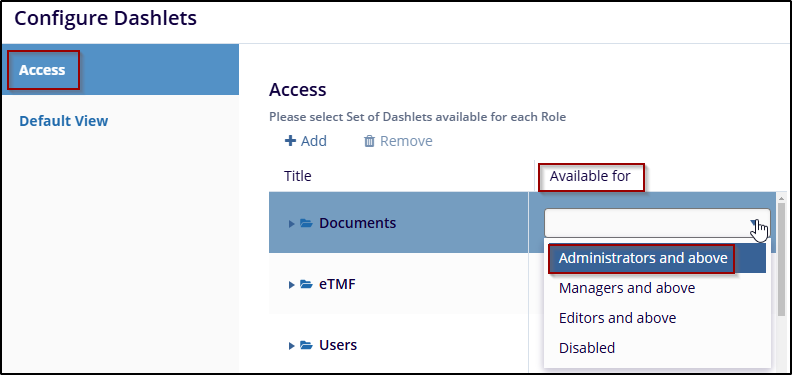
- Access: To select a Set of Dashlets available for each Role
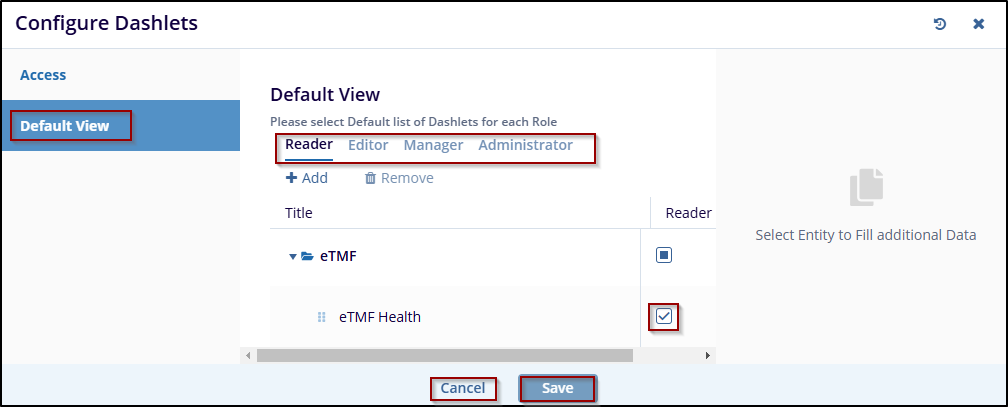
- Default View: To select the Default list of Dashlets for each Role.
- In the Access tab, select the roles from the dropdown menu under the Available for the
column to assign dashlets to specific roles.
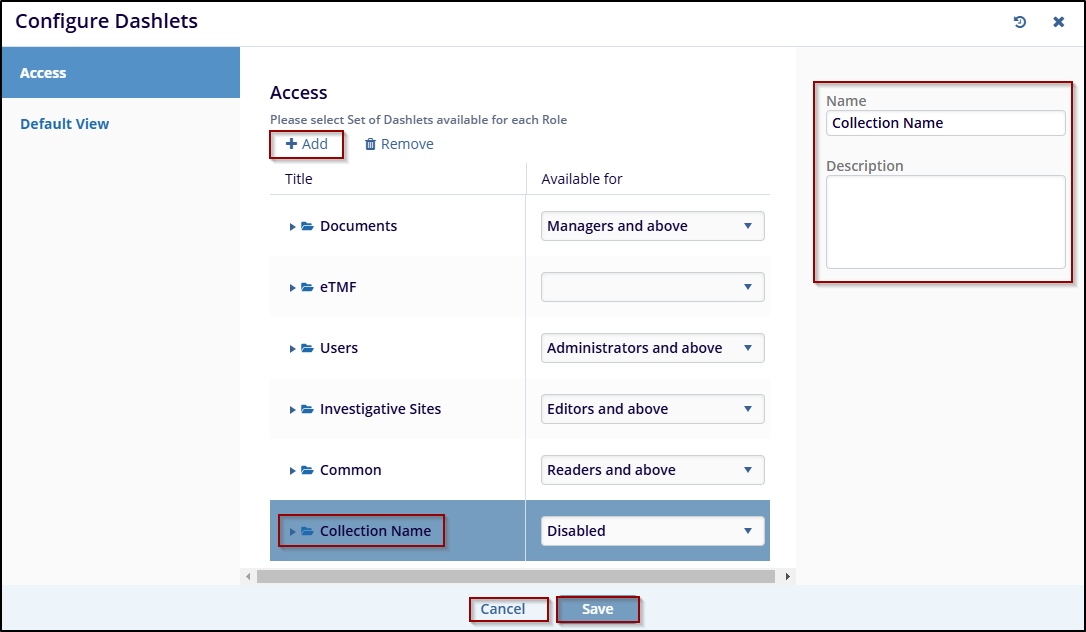
- Click on the Add button, and a new entry will appear under the list of available
dashlets as (collection Name). While adding a new dashlet, the user has to mention the Name
and Description in the right-side fields.
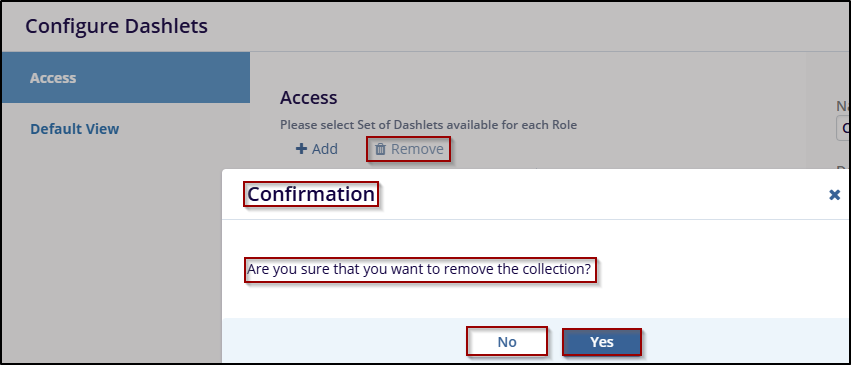
- Click the Remove button to initiate the removal process. Users can only remove the newly added fields and not the pre-defined fields.
- On the Confirmation popup, click the Yes button to confirm and remove the
collection, or click the No button to cancel the action.
- Switch to the Default View tab, and select the required and appropriate checkboxes for the roles mentioned – Reader, Editor, Manager, and Administrator.
- Click on the Save button to save the changes or click Cancel to discard the
changes.