Signing a Document
A user who has been assigned a document to review and sign can do so either via the related dashlet or directly from the Documents module.
Signing a document from the Documents to be Signed tab
To signed a document from Documents to be Signed, follow these steps:
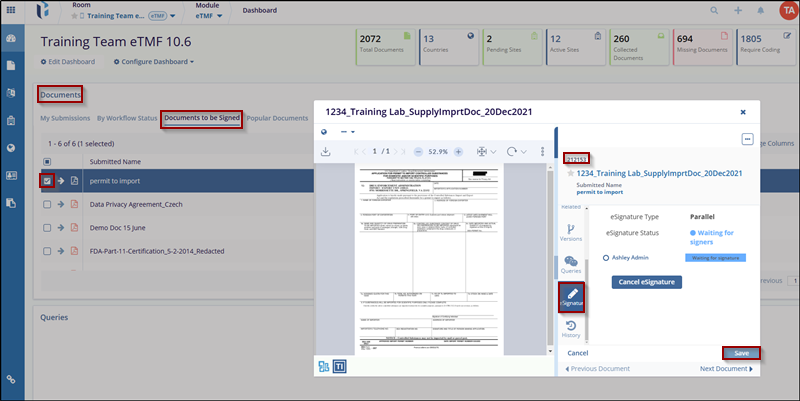
- Navigate to the Dashboard section in the eTMF module, located at the top left of the Toolbar.
- Once clicked on Dashboard, the user can see the Document section in the dashboard
- Click on the Documents to be Signed, next to My Submissions.
- This will open the document and the eSignature tab of the metadata panel in a popup window.
- Indicate your reason (either for signing or for rejecting the document) using the dropdown menu. The reasons are populated from the Settings area and are usually set up during room configuration. Please check the Document section from eTMF Module for additional information.
- Make any necessary comments and click the OK button for the appropriate action (Signing or Declining).
- Use your Username and Password to verify your identity and complete the signature
process and click on Save.
Signing a document from the Documents module
To signed a document from Documents module, follow these steps
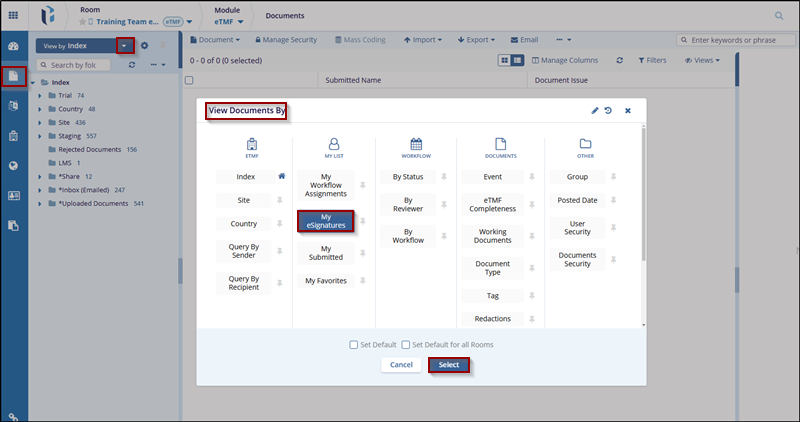
- Navigate to the eTMF module, there select Document section, at the top of the Index Pane, the user will see the View Document By dropdown menu.
- This dropdown menu allows users to choose how they want to view the documents.
- Click on the dropdown to reveal the available columns.
- Select the My eSignatures from My List columns and click on select button.
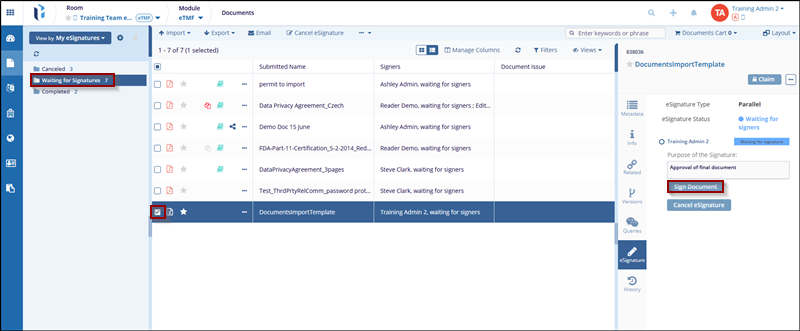
- This selection will display the folder with document statuses that are sent for the user’s eSignature and select the folder that needs to open for eSignature.
- Selected folder will be displayed document in the grid views, check the checkbox, next to the Document icon to open the Metadata panel in the right pane.
-
From Metadata panel, click the eSignature option, enter the purpose of the signature and click on Sign Document button.
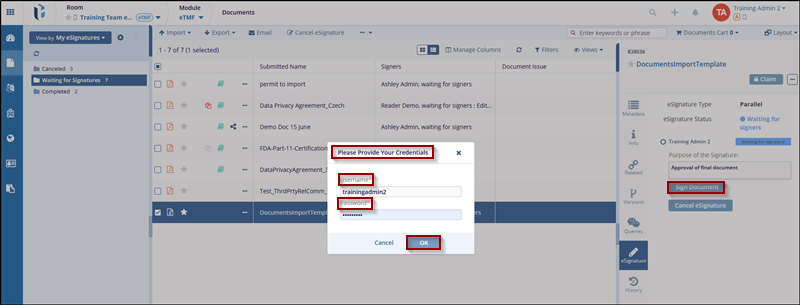
- A new ‘Please Provide Your Credentials’ window will pop-up, where user needs to
enter Username and Password to verify identity and complete the signature process by
selecting OK button.